Official Race System
A.R.T. Racing Timing
Live Race Control
Manual
Complete guide to A.R.T. Racing Timing — from decoder setup to Grand Prix finals.
1. Overview
A.R.T. Racing Timing is a live timing system for rental karting. Lap data is read from a Mylaps decoder connected to a PC at the track, sent to the cloud backend, and shown instantly on phones, tablets, computers and big-screen TVs.
- Race control (login required) — drop-in, live timing, Grand Prix, garage, saved heats, leaderboards.
- Public screens (open to everyone) — TV Livetiming, track records, live timing links and QR pages.
- Multi-facility — each track has its own data. You only see the facility you belong to.
2. Getting started
- Sign in at
/authwith your staff account. A demo account is shown on the login page if you just want to try the software. - Open Race control (
/console). The tabs at the top are your main work areas. - Register your karts in Garage (kart number + transponder ID) before running the first session.
- Set up the timing PC from Admin so the decoder starts feeding data.
Language: the app is available in English, Swedish, Norwegian, Finnish, Spanish, French and Italian. Switch language in the top right corner — the choice is remembered on that device and applies to public pages and phone views as well. Dates and times follow the chosen language.
Automatic updates: when a new version is released, TV, live timing and phone views reload themselves. In Race control you get a notice with a Reload button so you can finish what you are doing first.
3. Timing PC & decoder
The Mylaps decoder is connected to a PC at the track over the serial port. A small bridge program reads passings and posts them to the system.
- Go to Admin and open the timing PC card for your facility.
- Download the ready-made start file (
.batfor Windows,.shfor Linux/Mac) — it already contains your facility ID and decoder key. - Run it. The first run installs a portable runtime into a
pyruntimefolder next to the file and downloads the bridge itself — nothing has to be installed manually and no admin rights are needed. Later runs start immediately. - Leave the window open while you race. It prints every passing it forwards, which is the quickest way to see that the decoder is alive.
- The decoder key is shown on the same card. Treat it as a password — anyone with it can send lap data to your track. It is only readable by signed-in staff of your own facility.
4. Drop-in tab
Drop-in is where a walk-in session is set up and started. The old Heat Admin dialog is gone — everything is in this tab, laid out to fit on one screen without scrolling.
- Start heat / End heat — the big button in the top row. When a heat is running the button changes to End heat.
- Reset drivers — next to Start heat, resets all names back to the defaults (Driver 1, Driver 2 …) before the next group.
- Mode — Practice (counts time down) or Race (counts laps down).
- Heat name defaults to DROPIN. Whatever is typed here is used instead, and date and time are always appended automatically, e.g. "DROPIN 2026-08-02 15:35".
- Minutes / Laps — the field switches depending on the selected mode.
- Drivers per kart — every operational kart is listed with an editable driver name. While a heat is running the same list renames drivers live.
- Livetiming QR, Staff Timing Control QR and Print — in the top row of this tab.
Everything chosen here is also what the Staff QR page uses as its default for the next heat.
5. Live Timing
The Live Timing tab is now the results table only — all controls live in the Drop-in tab.
- Live table with position, driver, kart, last lap, best lap, gap, total time and lap count.
- Sorting — a lap-based heat (Race) is ranked by most laps and then lowest total time, i.e. first across the line wins. A time-based heat (Practice, minutes) is ranked by best lap time. The same rule is used everywhere: live timing, TV, the public QR pages, saved heats and printouts.
- Gap & Total — gap to the driver ahead and total race time are shown for lap-based heats. For minute-based sessions there is no gap, since the ranking is on best lap.
- The clock starts on the first passing — when a heat is started (drop-in, Grand Prix or Le Mans) the time does not run until the first kart crosses the finish line. Until then the heat shows as waiting, so a slow roll-out never eats race time.
- Status — the flag bar shows in plain words whether the heat is Ready, Waiting for first passing, Running or Finished. In a lap-based heat the session keeps running until the last kart has finished (or you end it manually), not when the winner crosses the line.
- Kart swap — if a kart breaks, pick a new kart for that driver directly in the table.
- Rename drivers — names can be corrected at any time, also afterwards from Leaderboards.
- Livetiming QR (in the Drop-in tab) — a static QR per track pointing at
/live/<track>. It always shows the session running right now, so it can be printed once and put up in reception. Visitors can also pick any of the 50 latest sessions from the dropdown, step back and forward with the arrows, and press "Back to live" to jump to the running heat again. - Staff QR Dropin — staff-only page to start/stop drop-in sessions from a phone, with the same mode, name and duration/laps choices as the Drop-in tab and editable driver names. The link itself authorises the track, so no sign-in is needed — keep it off public walls.
- Print — results can be printed from the Drop-in tab and Saved Heats.
- Delete a saved heat — Saved Heats asks for confirmation before anything is removed.
6. Grand Prix
A Grand Prix is a full event: qualifying, race heats and finals, with points and grids.
- Booking — create a booking with name and optional customer e-mail. The customer gets a pre-registration link plus the live timing link by e-mail (sent from a no-reply address, with your facility name in the subject).
- Driver names — the customer registers the drivers themselves via the link, or staff type them in manually in the booking panel.
- Practice (warm-up) — an optional first stage of X minutes. It gives no points and no positions, it is purely a warm-up before qualifying. Turn it on in the configurator or save it in a package.
- Qualifying — karts are drawn randomly. The result sets the starting order for the heats.
- Race heats — karts drawn randomly, grid from qualifying. If there are more drivers than karts, the drivers are split into sequential groups.
- Finals — always run as one single group. Choose how many drivers qualify straight to the A-Final (normally half the karts). The rest run the B-Final and the fastest of them are promoted into the A-Final. Turn on the C-Final to add one more step: choose how many go straight to the B-Final, and the rest race the C-Final where the fastest are promoted into the B-Final. If B-Final is turned off, everyone goes to the A-Final as long as karts are available.
- Launch stage — carries drivers, grid and kart assignment into the next stage automatically.
- Karts in use — tick which karts take part in the event. Only ticked karts are drawn, so a kart that will not start can be taken out before the draw. Individual drivers can also be moved to another kart in the kart dropdown under Grid & kart assignment right up until the stage is launched.
- Cancel running stage — if something went wrong (a driver in the wrong kart, a false start) press the red Cancel running stage button next to Launch stage. The timing stops, the stage results are deleted and the same stage can be launched again with a corrected grid.
- Skip / next steps past a stage or group without running it, and Reset event takes the whole configuration back to the start. Skipping always asks for a confirmation first, both in the console and on the staff phone.
- Groups — when there are more drivers than karts the field is split into as evenly sized groups as possible, and the same split is used in the console, on the grid page and on the staff phone. The event moves on to the next group as soon as the previous heat is finished, so the drivers' phones update by themselves.
- Changing kart — pick another kart for a driver either in the console or on the staff phone. If that kart is already taken by someone in the same group the two drivers swap, so the same number can never be used twice. Which karts are in use is shared between all devices — tick a kart off on the phone and it disappears in the app too.
- Packages — a finished event setup (stages, number of heats, finals, points) can be saved as a package and loaded onto any new booking with one click, so a standard "Grand Prix" or "Mini Grand Prix" never has to be built by hand again. Packages can be renamed, updated and deleted from the same menu.
Tie-break on equal points: best qualifying position first, then best overall lap time.
Example: run "2x8 min" as a Grand Prix
A package with two sessions of eight minutes is not a drop-in session — it is a small Grand Prix with two stages. Set it up like this:
- In the Grand Prix tab, build the format: turn off practice, turn on qualifying with 2 sessions of 8 minutes, turn off race heats, and turn off the finals (or keep an A-Final if the second session should be a final instead).
- Save the setup as a package, for example "2x8 min".
- In Bookings → Products, create the bookable experience with the same name, set the type to Grand Prix, a duration that covers both sessions plus briefing, and link it to the saved package.
- When a customer books it, the Grand Prix event is created automatically with the two stages ready, and the customer gets the driver registration link and the live timing link by e-mail.
- At the track: load the booking in the Grand Prix tab, launch session 1, and when it is finished launch session 2. Results, karts and grid follow along automatically.
The same recipe works for any package: it is the product type (Grand Prix, Le Mans or drop-in) that decides how the booking is run. A drop-in product runs one heat at a time, but can be sold as several drives in a row via the check-in.
Le Mans (endurance): use the separate Le Mans tab. Create a booking with a race length in hours, register one team per kart (with the team's drivers), then press Start Le Mans. The team that completes the most laps before time runs out wins — ties are settled by total time, and all Le Mans views (live timing, TV, saved heats, printouts) rank by laps first.
Le Mans warm-up & start order: before the race you can run a warm-up. Either let the warm-up result set the starting order, or draw the order randomly, and adjust single teams manually in the grid list. The starting order can be printed for the drivers' briefing.
7. Booking (online reservations)
The Bookings tab in Race control runs the whole reservation flow, and customers book themselves on the public page /book/<track> (for example racingtiming.app/book/racepark-ornskoldsvik). The link and its QR code are copied from the "Public booking link" card.
- Products — the bookable experiences: Grand Prix, Mini Grand Prix, Le Mans and drop-in sessions. Each product has a duration, a minimum and maximum number of drivers, a price and a currency, and can be activated or deactivated. A Grand Prix product can be linked to a saved GP package so the event is built automatically.
- Where a product is shown — every product has two tick boxes: Show on booking page and Show in drop-in check-in. That way a package such as 1x8, 2x8 or 3x8 min can be sold over the counter through the QR check-in without being bookable online in advance — untick the booking page and keep the check-in ticked (or the other way around).
- Number of drives — a drop-in product can contain several races. Set Drives to 2 for a "2 x 8 min" and the customer gets two places in the queue from one check-in: they drive, go back in line, and drive again. The whole purchase shares one reference and one paid tick.
- Opening hours — one row per weekday with opening time, closing time, slot length (minutes) and an Open/Closed toggle. Available start times on the public page are generated from these rows.
- Public flow — the customer picks 1) an experience, 2) a date and a free time slot, 3) contact details and number of drivers, and accepts the terms. They get a booking reference on screen.
- Confirmation e-mail — sent automatically to the customer with the reference, time and track. For Grand Prix bookings the driver pre-registration link and the live timing link are e-mailed as well.
- Automatic event creation — a Grand Prix booking creates the GP event, and a Le Mans booking creates the endurance event, so the stages are already waiting in the right tab when the customer arrives.
- Staff dashboard — the booking list shows upcoming reservations with customer, product, time and number of drivers. Set a booking to Confirmed, Done or Cancelled, or delete it. Payment is handled at the track — the system does not take card payments.
8. Drop-in check-in (QR in reception)
Walk-in customers register themselves instead of queuing at the desk. Print the QR from the Drop-in check-in card in the Bookings tab (button QR code in the top right of the card) and put it up in reception. It points at /checkin/<track>.
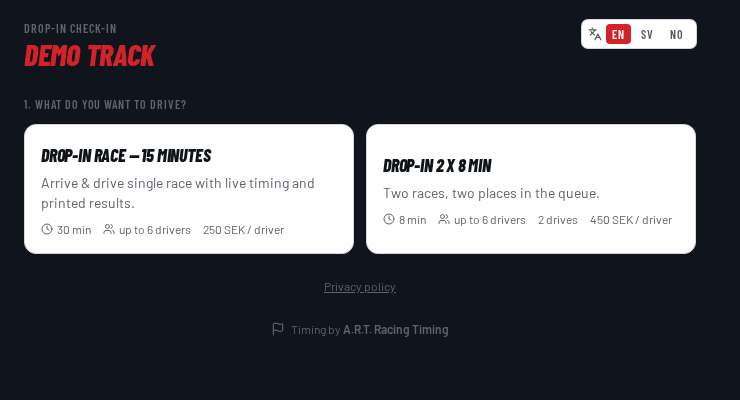
- The customer scans and picks a drop-in session (only drop-in products ticked for check-in are shown).
- They type the name or nickname of every driver — up to the maximum of the product. These names are what appears on the live timing and TV screens, so nobody has to be retyped by staff.
- They add a group contact name, optionally phone and e-mail, an optional message to the staff, and tick the box confirming the track rules and that driving is at their own risk (the consent is stored with a timestamp).
- They get a queue position and a reference to show in reception. A multi-drive product shows every place, for example
3 · 7.
The maximum number of drivers follows the karts that are actually running: if karts are taken out of service the check-in caps the group at that number and suggests splitting a bigger party into two groups.
Staff side: the group appears in the Drop-in check-in queue card with number in line, contact, driver names, phone and message. Press Start heat and the system creates a practice heat with those drivers on the available karts, starts it, sets the flag green and marks the group as done. No-show cancels the group, and the bin icon removes it. If more drivers registered than there are free karts, a warning tells you how many were left out. Groups older than 12 hours drop out of the queue automatically.
A purchase with several drives shows up as one line per race, labelled Drive 1, Drive 2 and so on, each with its own place in the queue. Ticking Paid on one of them marks the whole purchase as paid.
9. QR codes & links
- Live timing (per track) — static QR for drivers and spectators, always shows the current session.
- Grand Prix overview — public page with all stages, times, who drives in which heat and in which kart.
- Grid QR — one single QR for the whole Grand Prix. The drivers' phones show which stage and group is next, the starting order with kart numbers, and once the heat is finished the result as well: best lap for practice and qualifying, finishing order for lap races. It follows the event automatically as staff move forward.
- Staff GP control — staff-only QR to launch, skip and follow the stages from the track side. The phone shows the same driver list, karts and results as the console, has its own kart picker, and lets you change kart per driver. The driver list is read live, so a driver removed in the app disappears on the phone within a few seconds.
- Staff QR Dropin — start/stop drop-in practice sessions and rename drivers.
- Kart QR (laptimer) — one QR per kart, printed from the Garage and stuck on the kart. The driver's phone becomes a large MyChron-style laptimer with last lap, best lap, lap count and a live GPS-style track trace, scaled to full screen in both portrait and landscape. In races (Grand Prix, Le Mans and lap-limited heats) it also shows the live position, for example P3/12. It only shows the current session for that kart and resets when the next group starts.
- Booking —
/book/<track>, the public reservation page (Bookings tab). - Drop-in check-in —
/checkin/<track>, the reception QR where walk-in groups register their own driver names and join the queue. - TV & Records — fully open pages, no login.
10. Garage & service
The Garage tab has three parts: a service warning at the top, Service intervals, and Transponder Mapping with Detected transponders.
- Service warning — the box above the statistics shows how many karts have passed each service job. It is green while everything is within its interval and turns red when something is due. When something is overdue a popup also appears that a member of staff has to acknowledge with OK, once per session.
- Service intervals — create one job per type of service, for example "Add fuel" every 1 h, "Oil change" every 20 h, "Tyres" every 50 h. Each job has its own hour counter per kart, so refuelling does not reset the oil counter. Press Done on a row when the job is finished and that counter starts from zero again.
- Condition — set Working / Out of service in the service list. A kart that is out of service cannot be assigned to a driver until it is set back to working.
- Transponder Mapping — kart number and transponder ID. Changing a transponder or deleting a kart asks for confirmation first, so nothing is lost by a mis-click. Kart numbers may be reused between facilities.
- Race use — every kart can be set to In races or Drop-in only. A drop-in-only kart (for example a twin kart for small children) still records lap times, but is never drawn into a Grand Prix or Le Mans grid.
- Out of service / repaired when a kart is taken out of service you write the reason, and when it is put back you write what was fixed. Everything ends up in the kart's service log together with automatic "service due" entries, and the whole log can be printed as a repair report — handy at the end of a season.
- Kart QR codes — one QR per kart, printed from the Garage. It opens a public page for that kart only, showing its live lap times during the running session.
- Reset runtime — clears the total running time for a kart, for example after an engine change.
- Kart logbook — open the logbook on a kart to see its whole history: repairs, completed services, manual adjustments and reminders, with date, hours and who did it. Add your own entry (what was done, hours at the time, optional note) and tick Count this as the latest service to reset that service interval at the same time.
- Adjust hours manually — total running time and each service counter can be corrected by hand in the logbook, for example after an engine or hour-meter swap. The adjustment is logged with a note.
- Reminders — one-off reminders per kart, for example "Change front tyres in 10 h". They count down with the kart's running time and appear in the service warning when they are due, alongside the ordinary service intervals.
- Competition karts — visiting drivers' own karts are listed separately from the rental fleet. They are timed only, have no service intervals, and can be picked as the fleet for a Grand Prix event.
- Detected transponders — every transponder that passes the loop without being bound to a kart is listed here, so you can bind it to the right kart with one click instead of typing the ID.
11. Saved heats, records & name changes
- Saved heats all sessions with results, tagged with the booking they belong to, or "Drop-in". Results can be printed and shared with a driver link, and driver names can be corrected inline afterwards — the change follows through to lap times and records. Sessions where nobody drove (no laps) are not listed.
- Delete a heat — the confirmation dialog shows which heat it is and who was fastest in it, so the wrong session is not removed by mistake.
- Leaderboards / Records — best lap times per period. Driver names can be corrected inline if someone drove anonymously and then set a record.
- Delete a lap — a bad time (kart pushed back, double passing, wrong transponder) can be removed straight from the leaderboard with the delete button on the lap row. It disappears from records immediately.
- Lap time filter — set a lowest and highest realistic lap time for your track in Admin. Laps outside that range are never saved as records, so you do not have to clean up manually.
- Name change log — every rename is logged with time and the user who made it.
- Where a rename applies — a name corrected in Records & leaderboards only changes the leaderboard entry, so team and heat names are left untouched. A name corrected in a running race or under Saved heats follows through to lap times and the record list.
- Lap list per driver — click a driver row in live timing, the public QR page or a saved heat to see every lap, best lap and average lap for that driver.
- TV Livetiming — full-screen view for the big screen in the café or reception. The table scales itself so every kart on track fits on the screen without scrolling, however many are running.
12. Statistics
The Statistics tab shows how much the fleet is used, per day, week, month or a period you choose yourself.
- Trend — bar chart of running time per period, so busy and quiet days are easy to compare.
- Drivers — how many drivers took part in the period in total (every entry in every heat), with the number of unique names as a secondary figure.
- Per kart — hours per kart for the selected period, plus fleet balance so you can see whether some karts do far more work than others.
- Move between periods — the arrows next to the period step backwards and forwards one day, week, month or year at a time, so yesterday or last week can be compared without changing the filter.
- Export — the table can be exported as CSV for your own reporting.
13. Administration & access
- Facilities — each track has its own data. You only see the facility you belong to.
- Users & roles — an admin at the facility adds and removes users on the Admin page and gives each user one of six roles:
- Admin — full access to the track: all tabs, the Admin page, transponder mapping, opening hours and settings.
- User — runs heats, events and bookings, but cannot open the Admin page or change sensitive settings such as transponder mapping.
- Booking — reception and sales. Sees Live Timing, Drop-in, Bookings and Leaderboards, but not the garage, Grand Prix/Le Mans or settings.
- Garage — mechanics. Sees Live Timing and Garage & Service: karts, service intervals, logbook and kart selection. No bookings, heats or events.
- Competition — for people who only work with the competition side: timing, Grand Prix and Le Mans with the competition karts. The rental tabs Bookings, Leaderboards and Statistics are hidden, and the rental fleet cannot be changed.
- Kiosk — reception only. The user sees just the drop-in check-in queue and ticks “Paid” when a group has paid; no heats, karts or settings.
- Shift worker — schedule only. The user signs in and sees just their own and the team's schedule, can submit time off and sick leave and edit their own contact details; no timing, bookings or karts.
- Staff & Schedule — a staff tab with three parts, each of which the admin can switch on or off for the facility: a weekly shift schedule with the opening hours and who works when (admins add shifts and quickly replace a person), time off & absence (staff submit leave, sick days or wishes and an admin approves or denies them), and a contact list with phone and note per person.
- My personal link — each person gets a private link in the schedule: a mobile page with their upcoming shifts and a form for sick leave or time off, plus a calendar address to subscribe to in the phone calendar. Creating a new link immediately stops the old one from working.
- Lap time filter — the lowest and highest realistic lap time for the track. On a track like Racepark Övik roughly 40 seconds is a normal lap, so anything far below or above is discarded automatically.
- Timing PC — download the start file and read the decoder key here.
- Change password — every user changes their own password from the Admin page. A forgotten password is reset from the login page: enter your e-mail, follow the link in the message and choose a new one.
- Public links — TV, records, live timing and grid links per track are copied from the Admin page.
14. Troubleshooting
- No lap times — check that the bridge script is running on the timing PC, that the decoder is on the right serial port, and that the karts' transponder IDs match the Garage.
- A driver is missing on live timing — the kart has no transponder bound, or the driver was not added to the session.
- Wrong drivers in a stage — make sure the stage was launched from the correct booking; every heat is tied to its Grand Prix booking.
- The customer did not get the e-mail — resend from the booking with "Email links" and check the address for typos.
- Kart cannot be selected — it is marked as not operational in the Garage.
- A tab or function is missing — that module is not part of your agreement. Contact us and we activate it for your track.
- No drop-in sessions on the check-in page — the track has no active product of the drop-in type. Create or activate one under Bookings.
- "Start heat" does nothing on a queue group — there are no karts available; add or repair karts in the Garage.